"It works on my machine, but my machine is now a Docker image, and your machine is also that Docker image, and so the bug is reproducible by definition."
Deploy, Container-Native AI Agent
Docker packages applications and their dependencies into lightweight, portable units called containers. For ML engineers, Docker solves the perennial environment reproducibility problem: CUDA versions, Python dependencies, system libraries, and model weights can all be captured in a single image that runs identically on a laptop, a cloud VM, or a Kubernetes cluster. This section covers the core concepts, installation, and essential commands you need to containerize ML workloads. For LLM and agent deployment specifically, the same image abstraction is what lets you ship a vLLM inference server, a RAG service, or an agent runtime to production with the same CUDA, tokenizer, and model-weight pinning that you used in evaluation; without containers, LLM serving stacks drift between environments and the same prompt starts returning different outputs.
Prerequisites
This section assumes basic Linux command-line fluency, awareness of Python virtual environments, and a working mental model for what an LLM inference server is (covered in Section 9.1).
65.1.1 Why ML Engineers Need Docker
Docker was originally called dotCloud, a PaaS company that pivoted to release Docker as an internal tool in March 2013. Solomon Hykes demoed the original Docker prototype in a 5-minute lightning talk at PyCon US 2013; the audience was approximately 70 people, and most of them missed the talk because it was scheduled against the lunch break.
Machine learning projects depend on a complex stack of software: Python interpreters, numerical libraries
(NumPy, PyTorch, TensorFlow), CUDA toolkits, cuDNN, system-level packages, and often specific versions of
each. A model that trains successfully on one machine may fail on another because of a minor version mismatch
in any of these layers. Virtual environments like venv or conda manage Python
packages but cannot control system libraries or GPU drivers.
Docker addresses this gap by packaging the entire runtime environment, from the operating system up through application code, into an image. When you run that image, Docker creates an isolated container that behaves identically regardless of the host machine's configuration. This guarantee is essential for three ML workflows: reproducible training, consistent evaluation, and reliable deployment.
Containers are not virtual machines. A VM runs a full guest operating system with its own kernel, consuming gigabytes of memory. A container shares the host kernel and isolates only the user-space processes, making it lightweight (often under 100 MB for the container layer itself) and fast to start (seconds, not minutes).
65.1.2 Core Concepts: Images, Containers, and Layers
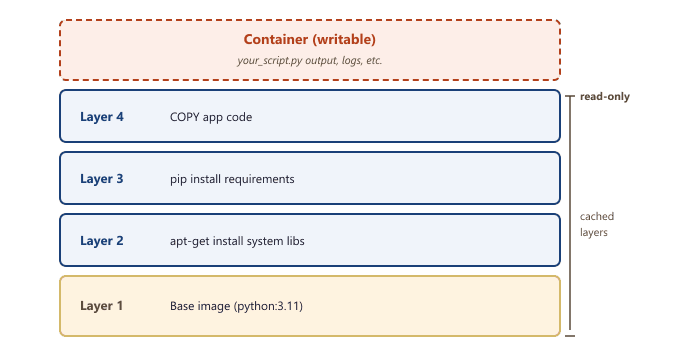
Docker's architecture revolves around three fundamental concepts. An image is a read-only template that contains the filesystem, installed packages, environment variables, and a default command. A container is a running instance of an image, with its own writable layer on top of the image's read-only layers. You can run multiple containers from the same image, and each one is isolated from the others.
Images are built in layers. Each instruction in a Dockerfile (the recipe for building an image) creates a new layer. Docker caches these layers, so if you change only your application code, Docker reuses the cached layers for the base OS and installed packages, making rebuilds fast.
A container's filesystem is not copied from the image; it is a union mount. A storage driver such as OverlayFS stacks the image's read-only layers as a lowerdir and gives the container a single empty upperdir on top, presenting one merged view. Reads fall through to whichever lower layer holds the file, so launching a container copies nothing and is near-instant. Only when a process writes a file does the driver copy that file up into the upperdir (copy-on-write) and edit the copy, leaving the shared layers untouched. Because every container from an image shares the same read-only layers and adds only its own diffs, disk use grows with what changes, not with the number of containers.
65.1.3 Installing Docker
Docker Desktop is available for Windows, macOS, and Linux. On Linux servers (the most common environment for ML workloads), you can install Docker Engine directly. The following commands install Docker on Ubuntu 22.04 or later.
# Update package index and install prerequisites
sudo apt-get update
sudo apt-get install -y ca-certificates curl gnupg

# Add Docker's official GPG key and repository
sudo install -m 0755 -d /etc/apt/keyrings
curl -fsSL https://download.docker.com/linux/ubuntu/gpg \
    | sudo gpg --dearmor -o /etc/apt/keyrings/docker.gpg
echo "deb [arch=$(dpkg --print-architecture) \
    signed-by=/etc/apt/keyrings/docker.gpg] \
    https://download.docker.com/linux/ubuntu \
    $(lsb_release -cs) stable" \
    | sudo tee /etc/apt/sources.list.d/docker.list > /dev/null

# Install Docker Engine
sudo apt-get update
sudo apt-get install -y docker-ce docker-ce-cli containerd.io

# Allow your user to run Docker without sudo
sudo usermod -aG docker $USERAfter installation, verify that Docker is working by running the hello-world container.
# Verify the installation
docker run hello-world

# Check Docker version
docker versionOn cloud VMs (AWS EC2, GCP Compute Engine, Azure VMs), Docker is often pre-installed on ML-optimized images. Check with docker --version before installing. If you need GPU support, ensure the NVIDIA Container Toolkit is also installed (covered in Section 65.2).
65.1.4 Essential Docker Commands
The Docker CLI provides commands for building images, running containers, managing storage, and inspecting state. The following table summarizes the commands you will use most frequently in ML workflows.
| Command | Purpose | Example |
|---|---|---|
docker build | Build an image from a Dockerfile | docker build -t mymodel:v1 . |
docker run | Create and start a container | docker run -it mymodel:v1 bash |
docker ps | List running containers | docker ps -a (include stopped) |
docker images | List local images | docker images |
docker stop | Stop a running container | docker stop my_container |
docker rm | Remove a stopped container | docker rm my_container |
docker rmi | Remove an image | docker rmi mymodel:v1 |
docker logs | View container output | docker logs -f my_container |
docker exec | Run a command inside a running container | docker exec -it my_container bash |
docker pull | Download an image from a registry | docker pull python:3.11-slim |
65.1.5 Running Your First ML Container
Let us walk through running a PyTorch container interactively. The official PyTorch images from NVIDIA's NGC catalog (NVIDIA GPU Cloud, NVIDIA's public registry of pre-built GPU-ready containers) come pre-configured with CUDA, cuDNN, and PyTorch. This is the fastest way to get a working GPU-enabled environment.
# Pull the official PyTorch container from NVIDIA NGC
docker pull nvcr.io/nvidia/pytorch:24.01-py3
# Run interactively with GPU access
docker run --gpus all -it \
--name pytorch-dev \
-v $(pwd)/data:/workspace/data \
-v $(pwd)/models:/workspace/models \
-p 8888:8888 \
nvcr.io/nvidia/pytorch:24.01-py3 bash
This command does several things. The --gpus all flag grants the container access to all
host GPUs (requires the NVIDIA Container Toolkit). The -it flags allocate an interactive
terminal. The -v flags mount host directories into the container, allowing data and models
to persist after the container stops. The -p flag maps port 8888 from the container to the
host, useful for Jupyter notebooks.
65.1.6 Volumes: Persistent Data for ML Workloads
By default, all data written inside a container is lost when the container is removed. For ML projects, you need persistent storage for datasets, model checkpoints, logs, and experiment outputs. Docker provides two mechanisms for persistent data: bind mounts and named volumes.
A bind mount maps a specific host directory to a container path. This is ideal when you want to edit code on the host and have changes reflected immediately inside the container. A named volume is managed by Docker and stored in Docker's internal directory structure. Named volumes are better for databases, caches, and other data that the container manages exclusively.
# Bind mount: map host directory to container directory
docker run -v /home/user/datasets:/data mymodel:v1

# Named volume: Docker manages the storage location
docker volume create model-cache
docker run -v model-cache:/root/.cache/huggingface mymodel:v1

# List all volumes
docker volume ls

# Inspect a volume to find its host path
docker volume inspect model-cacheA common pattern for LLM projects is to create a named volume for the Hugging Face cache directory (~/.cache/huggingface). This way, model weights downloaded in one container are available to all future containers, avoiding repeated multi-gigabyte downloads. Mount it with -v hf-cache:/root/.cache/huggingface.
65.1.7 Networking Basics
Containers are isolated by default, which means they cannot communicate with each other or the host network unless explicitly configured. Docker provides port mapping and bridge networks to enable communication.
Port mapping with -p exposes a container port on the host. For example,
-p 8000:8000 maps port 8000 inside the container to port 8000 on the host, making an API
server accessible from outside. When you need multiple containers to communicate (for example, an inference
server and a database), you create a Docker network and attach both containers to it.
# Create a custom bridge network
docker network create ml-network

# Run a vector database on the network
docker run -d --name chromadb \
    --network ml-network \
    -p 8000:8000 \
    chromadb/chroma:latest

# Run your application on the same network
docker run -d --name app \
    --network ml-network \
    -e CHROMA_HOST=chromadb \
    myapp:v1
Inside the ml-network, the application container can reach ChromaDB using the hostname
chromadb (Docker's built-in DNS resolves container names to their IP addresses). Port 8000
is also mapped to the host, so you can access ChromaDB from your browser at
http://localhost:8000.
65.1.8 Cleaning Up: Managing Disk Space
Docker images for ML workloads are large, often 5 to 15 GB each. Over time, unused images, stopped containers, and dangling volumes can consume hundreds of gigabytes. Regular cleanup is essential.
# Remove all stopped containers
docker container prune -f

# Remove unused images (not referenced by any container)
docker image prune -f

# Remove all unused volumes (WARNING: deletes data)
docker volume prune -f

# Nuclear option: remove everything unused
docker system prune -a --volumes -f

# Check Docker disk usage
docker system dfThe docker system prune -a --volumes command removes all unused images, containers, and volumes. If you have model weights stored in named volumes that are not currently mounted, they will be deleted. Always check with docker volume ls before running a volume prune.
Summary
Docker provides the foundation for reproducible ML environments by packaging code, dependencies, and system libraries into portable images. Images are built from layered filesystems that enable efficient caching and sharing. Containers are lightweight, isolated runtime instances of these images. Volumes provide persistent storage for datasets, model weights, and experiment outputs. Networks enable communication between containers. In the next section, we explore how to write Dockerfiles specifically optimized for ML and LLM projects, including GPU passthrough and multi-stage builds.
What's Next?
In the next section, Section 65.2: Writing Dockerfiles for ML and LLM Projects, we build on the material covered here.