"Docker Compose is what you reach for when you need three services and zero ops engineers. The fourth service is when you stop reaching."
Sched, Compose-Pragmatist AI Agent
Real-world AI applications rarely consist of a single container. A typical RAG system might include an LLM inference server, a vector database, a REST API gateway, a Redis cache, and a PostgreSQL database for user sessions. Docker Compose lets you define, configure, and launch all of these services with a single docker compose up command, using a declarative YAML file that describes the entire application stack.
Prerequisites
This section assumes the Docker fundamentals from Section 65.1, the Dockerfile patterns from Section 65.2, and the basic LLM-server vocabulary from Section 10.6.
65.3.1 Why Docker Compose?
Docker Compose started life as Fig, a separate open-source project written by Aanand Prasad and Ben Firshman in 2014. Docker Inc. acquired Fig and renamed it Compose, but the original fig.yml filename lingered in production codebases for years. As late as 2022, some Kubernetes migration tools still parsed both fig.yml and docker-compose.yml as synonyms for backward compatibility.
In Section E.1, we launched individual containers with long docker run commands that
included port mappings, volume mounts, network assignments, and environment variables. Managing five
or six such commands manually is error-prone and tedious. Docker Compose replaces these ad-hoc commands
with a single configuration file (docker-compose.yml or compose.yml) that
defines all services, their relationships, and their configurations in one place.
Compose provides several capabilities beyond simple container launching. It creates an isolated network for the application stack automatically, manages service startup order with dependency declarations, supports health checks to ensure services are ready before dependents start, and enables scaling individual services with a single flag.
65.3.2 Compose File Structure
A Compose file uses YAML syntax and organizes configuration into top-level keys:
services (the containers), volumes (persistent storage), and
networks (communication channels). The following example shows the structure with a
minimal two-service stack.
# compose.yml (or docker-compose.yml)
# Defines a simple API + database stack
services:
api:
build: ./api # Build from local Dockerfile
ports:
- "8000:8000" # Map host port to container port
environment:
- DATABASE_URL=postgresql://user:pass@db:5432/appdb
depends_on:
db:
condition: service_healthy # Wait for DB health check
volumes:
- ./api/src:/app/src # Mount source code for development
db:
image: postgres:16-alpine # Use pre-built image
environment:
POSTGRES_USER: user
POSTGRES_PASSWORD: pass
POSTGRES_DB: appdb
volumes:
- pgdata:/var/lib/postgresql/data
healthcheck:
test: ["CMD-SHELL", "pg_isready -U user"]
interval: 5s
timeout: 3s
retries: 5
volumes:
pgdata: # Named volume for database persistenceDocker Compose automatically creates a bridge network for the stack. Services can reach each other using their service name as the hostname. In the example above, the API service connects to PostgreSQL at db:5432, where db is resolved by Docker's internal DNS. No manual network configuration is required.
65.3.3 A Complete RAG Application Stack
Let us build a realistic Compose file for a RAG (Retrieval-Augmented Generation) application. This stack includes an LLM inference server, a vector database for document embeddings, a REST API that orchestrates queries, a Redis cache for session management, and a PostgreSQL database for user data.
# compose.yml: RAG Application Stack
services:
  # LLM inference server (GPU-enabled)
  llm:
    image: vllm/vllm-openai:latest
    command: >
      --model meta-llama/Llama-3.1-8B-Instruct
      --max-model-len 4096
      --gpu-memory-utilization 0.90
    ports:
      - "8001:8000"
    volumes:
      - hf-cache:/root/.cache/huggingface
    deploy:
      resources:
        reservations:
          devices:
            - driver: nvidia
              count: 1
              capabilities: [gpu]
    healthcheck:
      test: ["CMD", "curl", "-f", "http://localhost:8000/health"]
      interval: 30s
      timeout: 10s
      retries: 3
      start_period: 120s           # LLM loading takes time

  # Vector database for document retrieval
  chromadb:
    image: chromadb/chroma:0.5.0
    ports:
      - "8002:8000"
    volumes:
      - chroma-data:/chroma/chroma
    environment:
      - ANONYMIZED_TELEMETRY=false

  # Application API server
  api:
    build:
      context: ./api
      dockerfile: Dockerfile
    ports:
      - "8000:8000"
    environment:
      - LLM_BASE_URL=http://llm:8000/v1
      - CHROMA_HOST=chromadb
      - CHROMA_PORT=8000
      - REDIS_URL=redis://redis:6379/0
      - DATABASE_URL=postgresql://raguser:ragpass@postgres:5432/ragdb
    depends_on:
      llm:
        condition: service_healthy
      chromadb:
        condition: service_started
      redis:
        condition: service_healthy
      postgres:
        condition: service_healthy

  # Session cache
  redis:
    image: redis:7-alpine
    ports:
      - "6379:6379"
    volumes:
      - redis-data:/data
    healthcheck:
      test: ["CMD", "redis-cli", "ping"]
      interval: 5s
      timeout: 3s
      retries: 5

  # User and conversation database
  postgres:
    image: postgres:16-alpine
    environment:
      POSTGRES_USER: raguser
      POSTGRES_PASSWORD: ragpass
      POSTGRES_DB: ragdb
    volumes:
      - pgdata:/var/lib/postgresql/data
      - ./db/init.sql:/docker-entrypoint-initdb.d/init.sql
    healthcheck:
      test: ["CMD-SHELL", "pg_isready -U raguser"]
      interval: 5s
      timeout: 3s
      retries: 5

volumes:
  hf-cache:
  chroma-data:
  redis-data:
  pgdata: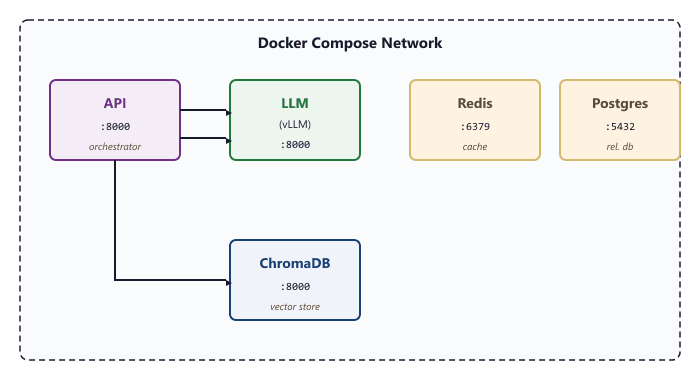
65.3.4 Essential Compose Commands
Docker Compose provides a set of subcommands for managing the application lifecycle. The following commands cover the most common operations during development and deployment.
# Start all services in the background
docker compose up -d
# Start and rebuild images if Dockerfiles changed
docker compose up -d --build
# View logs from all services (follow mode)
docker compose logs -f
# View logs from a specific service
docker compose logs -f api
# Stop all services (preserves volumes)
docker compose down
# Stop and remove volumes (WARNING: deletes all data)
docker compose down -v
# List running services and their status
docker compose ps
# Execute a command inside a running service
docker compose exec api bash
# Scale a specific service to multiple instances
docker compose up -d --scale api=3During development, use docker compose up without -d to see all service logs interleaved in your terminal. Press Ctrl+C to stop everything. For production, always use -d (detached mode) and monitor with docker compose logs -f in a separate terminal.
65.3.5 Health Checks and Dependency Management
The depends_on directive in Compose controls startup order, but by default it only waits
for the container to start, not for the service inside it to be ready. This is a critical distinction
for ML applications where an LLM server may take two minutes to load model weights. The
condition: service_healthy option makes Compose wait for a service's health check to pass
before starting its dependents.
Health checks are defined per service and specify a command that returns exit code 0 when the service
is ready. The start_period parameter is especially important for LLM servers, as it tells
Docker to ignore health check failures during the initial loading phase.
healthcheck block on the llm service in compose.yml. Each key tunes a different aspect of liveness probing; the start_period grace window is the one teams forget most often when serving large models.healthcheck field | Example value | Behavior |
|---|---|---|
test | ["CMD", "curl", "-f", "http://localhost:8000/health"] | Probe command; exit 0 means healthy |
interval | 30s | Run the probe every 30 seconds |
timeout | 10s | Fail this probe if no response within 10 seconds |
retries | 3 | Mark service unhealthy after 3 consecutive failures |
start_period | 180s | Grace window for model loading; failures here do not count |
Without condition: service_healthy, your API container may start and immediately crash because the LLM server is still loading model weights. Always pair GPU-intensive services with generous start_period values and use health check conditions on dependent services.
65.3.6 Environment Files and Configuration Management
Hardcoding configuration values in compose.yml makes the file difficult to reuse across
environments (development, staging, production). Docker Compose supports .env files that
supply variable values referenced in the Compose file with ${VARIABLE} syntax.
.env file referenced from compose.yml. Keys are upper-snake-case by convention; values are read with ${KEY} from the Compose file. Add the file to .gitignore: it contains secrets and host-specific paths.| Variable | Example value | Notes |
|---|---|---|
LLM_MODEL | meta-llama/Llama-3.1-8B-Instruct | Hugging Face repo id, passed to vLLM via --model |
LLM_MAX_LEN | 4096 | Context length cap, lowers KV cache memory |
LLM_GPU_UTIL | 0.90 | Fraction of GPU memory vLLM is allowed to claim |
POSTGRES_USER | raguser | App-scoped Postgres role, not the superuser |
POSTGRES_PASSWORD | supersecretpassword | Strong random value in production; never commit |
HF_TOKEN | hf_abc123xyz | Hugging Face access token for gated model downloads |
# compose.yml referencing environment variables
# Compose reads ${VAR} from the .env file at "docker compose up" time;
# unset variables expand to empty strings (use ${VAR:?error} to require them).
# Reusable defaults live in a YAML anchor so we do not repeat ourselves.
x-restart-defaults: &restart_defaults
  restart: unless-stopped

services:

  # --- vLLM inference server (GPU) -------------------------------------
  llm:
    <<: *restart_defaults
    image: vllm/vllm-openai:latest
    command: >
      --model ${LLM_MODEL}
      --max-model-len ${LLM_MAX_LEN}
      --gpu-memory-utilization ${LLM_GPU_UTIL}
    environment:
      - HF_TOKEN=${HF_TOKEN}               # Gated-model download token
    ports:
      - "8000:8000"                       # OpenAI-compatible API

  # --- Postgres (metadata, eval results) -------------------------------
  postgres:
    <<: *restart_defaults
    image: postgres:16-alpine
    environment:
      POSTGRES_USER: ${POSTGRES_USER}
      POSTGRES_PASSWORD: ${POSTGRES_PASSWORD}
      POSTGRES_DB: rag
    volumes:
      - pgdata:/var/lib/postgresql/data

volumes:
pgdata: # Named volume; survives container rebuildscompose.yml references the variables from the .env file with ${VAR} syntax and reuses a small &restart_defaults anchor across services. Compose resolves the variables at docker compose up time, so changing models or credentials only requires editing .env, not the Compose file itself.For multi-environment setups, maintain separate files like .env.dev, .env.staging, and .env.prod. Launch with a specific environment by passing the file explicitly: docker compose --env-file .env.prod up -d. Add all .env* files to your .gitignore to prevent accidental credential commits.
65.3.7 GPU Configuration in Compose
GPU access in Docker Compose requires the deploy.resources.reservations.devices
configuration block. This is the Compose equivalent of the --gpus flag used with
docker run.
# GPU allocation in Compose: two valid styles side by side.
# Style A (count): let the NVIDIA Container Runtime pick free GPUs.
# Style B (device_ids): pin specific GPUs for deterministic placement.
# Use Style B whenever two GPU services run on the same host.

# Reusable NVIDIA driver block (referenced via *nv_gpu below).
x-nv-gpu: &nv_gpu
  driver: nvidia
  capabilities: [gpu]

services:

  # Style A: count-based allocation (simplest, single GPU workloads).
  llm:
    image: vllm/vllm-openai:latest
    deploy:
      resources:
        reservations:
          devices:
            - driver: nvidia
              count: 1              # Number of GPUs to allocate
              capabilities: [gpu]   # Required capability

  # Style B: pinned device IDs (multi-GPU training, deterministic).
  training:
    build: ./training
    deploy:
      resources:
        reservations:
          devices:
            - driver: nvidia
              device_ids: ["0", "1"]  # Specific GPU IDs (must be strings)
              capabilities: [gpu]
    environment:
      - NVIDIA_VISIBLE_DEVICES=0,1     # Belt-and-braces visibility filter
- TORCH_CUDA_ARCH_LIST=8.0+PTX # Target Ampere by defaultllm service requests one GPU by count, leaving Docker to choose; the training service pins device IDs 0 and 1 so the two workloads do not contend for the same GPU memory.You can allocate GPUs by count (let Docker choose which GPUs) or by specific device IDs (for deterministic allocation). When running multiple GPU services on the same machine, use device IDs to ensure each service gets its own GPU and they do not compete for memory.
65.3.8 Overrides and Profiles for Development
Docker Compose supports override files that layer additional configuration on top of the base
compose.yml. This is useful for development-specific settings like source code mounts,
debug ports, and relaxed security.
# compose.override.yml (auto-loaded in development).
# Compose merges this file on top of compose.yml when you run
#   docker compose up
# in the same directory. For production, do not place this file next to
# compose.yml; instead point at a prod-specific override explicitly:
#   docker compose -f compose.yml -f compose.prod.yml up -d

# Shared dev-mode environment block, reused with <<: *dev_env below.
x-dev-env: &dev_env
  LOG_LEVEL: debug
  PYTHONDONTWRITEBYTECODE: "1"

services:

  # Development API: bind-mount sources for hot reload, verbose logs.
  api:
    volumes:
      - ./api/src:/app/src          # Hot-reload source code
      - ./api/tests:/app/tests      # Run pytest against live edits
    environment:
      - LOG_LEVEL=debug
      - RELOAD=true                 # Enable auto-reload (uvicorn)
      - PYTHONDONTWRITEBYTECODE=1   # Keep mounted volume clean
    command: ["uvicorn", "src.main:app", "--reload", "--host", "0.0.0.0"]

  # Development LLM: pick a 4K-context, single-GPU-friendly model.
  llm:
    command: >
      --model microsoft/Phi-3-mini-4k-instruct
      --max-model-len 2048
      --gpu-memory-utilization 0.85
    environment:
      - VLLM_LOGGING_LEVEL=DEBUG
Compose automatically merges compose.yml with compose.override.yml if both
exist. For production, use docker compose -f compose.yml -f compose.prod.yml up -d to
load a production-specific override instead of the development defaults.
Summary
Docker Compose transforms multi-container management from a series of manual commands into a declarative configuration file. Health checks with dependency conditions ensure services start in the correct order, which is critical when LLM servers need minutes to load model weights. Environment files and override files enable clean separation between development and production configurations. In the next section, we focus specifically on containerizing LLM inference servers like vLLM, TGI, and Ollama.
What's Next?
In the next section, Section 65.4: Containerizing LLM Inference Servers, we build on the material covered here.